Google Business Profile verification and a suspension are different problems. First read the status shown in the account: are you being asked to verify, review a rejected video, resolve ownership or appeal a restriction? Then check the business identity and location against Google's guidelines. Prepare the evidence the relevant workflow requests before submitting it. Do not create another profile to bypass the problem or pay someone for a guaranteed reinstatement.
The next step depends on the actual notice. A method that worked for a neighboring business may not be offered to yours, and an appeal does not replace an unfinished verification task.
How verification works and why methods differ by business
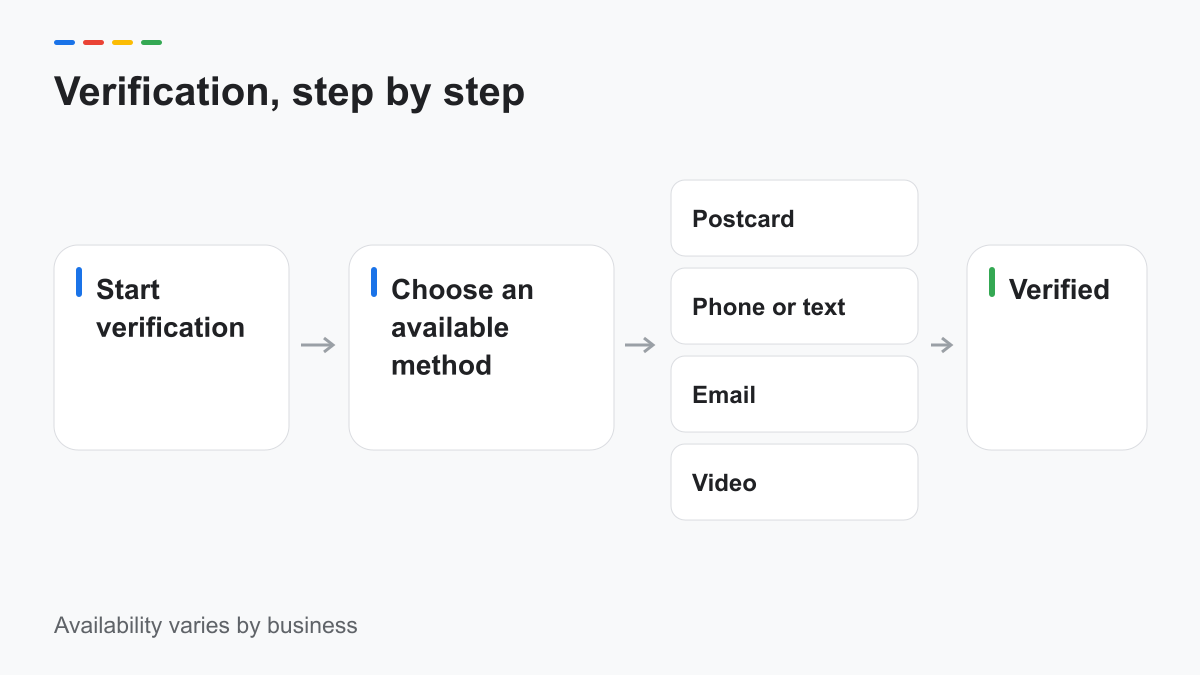
Sign in with the account associated with the business and inspect its current verification options. Google's verification help says the methods are automatically determined and depend on factors such as business type, public information, region and hours. More than one method may be required.
The official guide documents phone or text, email, live video and mail where available, and links to video-recording instructions. Treat those as documented possibilities, not a menu every owner can choose from. The conceptual flowchart supplied with this article groups video options; it does not show every possible account state.
For phone or email, check that you can use the contact method shown. For a live video call, prepare to demonstrate the business and your authority to manage it through the official process. Do not accept a stranger's request for a verification code.
For a recorded video, Google's dedicated guide requires a continuous recording made and submitted through the profile workflow. Plan a route that shows the requested location, business operation and management evidence without filming other people's faces or sensitive information. Follow the actual prompts rather than uploading a promotional video.
Use our Google Business Profile guide for broader profile setup. Keep that general setup work separate from the evidence needed for your current notice.
Why verification fails
Begin with the message Google provides, not an assumed cause. A rejected video, an unavailable method and a listing controlled by another account require different follow-up. Write down the status and the last action before editing anything.
For a video problem, review what the recording actually demonstrates. Can a reviewer identify the location and understand your connection to the operation? Did the recording follow the requested format? Google's video help describes different evidence for storefront and service-area businesses, so a storefront-only plan may not fit a mobile service.
For contact verification, confirm that the displayed phone or email is reachable by the person completing the process. Do not repeatedly request codes while changing several business fields. Follow the instructions for the selected method, especially when information changes could invalidate a pending step.
For ownership issues, inspect the existing profile before adding another. Google's duplicate-and-ownership help describes how to request access and address disputed ownership. Keep the established business identity intact while resolving access.
If the profile says to review issues, open that instruction and document what it asks you to fix. A generic internet checklist is useful only after the account-specific request has been understood.
What the guidelines say about addresses, virtual offices and service-area businesses
A mailing address is not automatically an eligible customer-facing location. Google's representation guidelines do not accept P.O. boxes or remote mailboxes as business addresses and set conditions for virtual offices and shared premises. Read those conditions against how your business actually operates.
If customers do not visit your business address, use the service-area framework and remove the address from public display as directed. Do not describe a private storage space as a public office just because it can receive mail.
Check the address wherever it appears: profile, website, registration and supporting records. Differences can have legitimate explanations, but those explanations should be clear in the appropriate private workflow. Do not alter official evidence to make it resemble an inaccurate listing.
For a hybrid business, document both parts of the operation honestly. A company that receives customers and travels to jobs needs a profile that reflects those facts and meets the storefront requirements. If your premises do not qualify, resolve the listing model before trying to prove an unsupported one.
Reasons a profile gets suspended
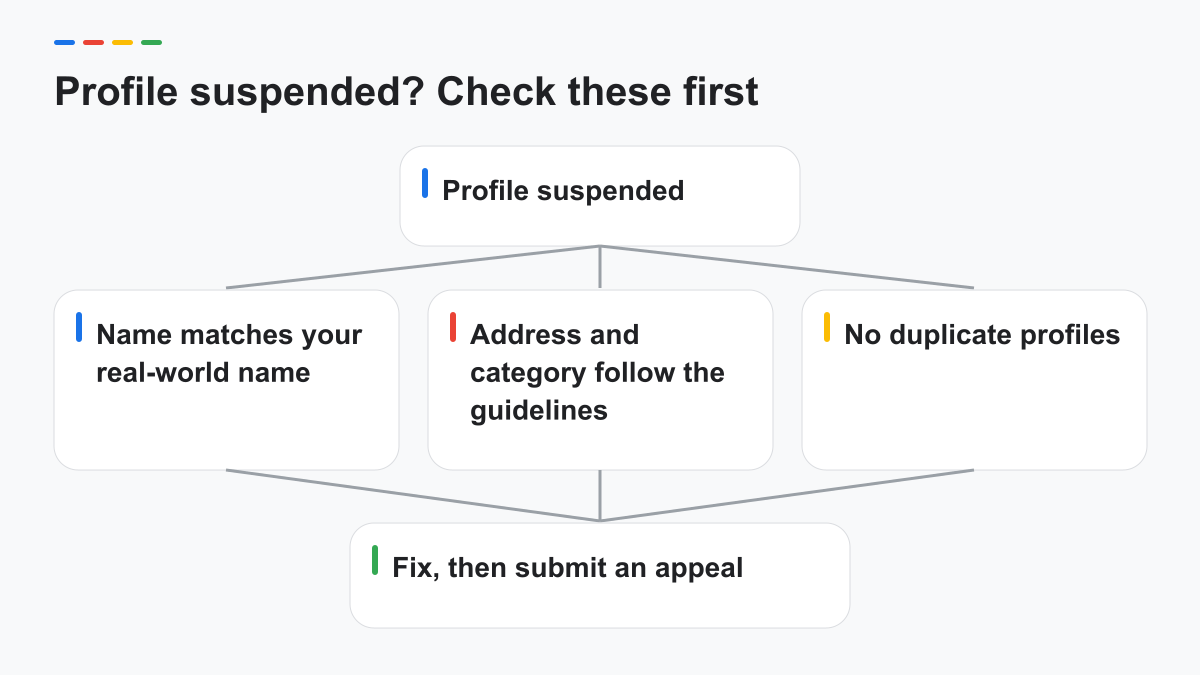
Google moderates profiles and content that violate its guidelines. Review the policy link and reason shown for the restriction. Relevant checks include the real-world name, eligible address model, accurate category and duplicate listings; this is a policy review, not a claim that one of those must have caused your suspension.
Use the source wording precisely where the distinction matters. Google's representation guideline says: "There should only be one profile per business". The same document sets out practitioner and department exceptions, so do not turn that sentence into a rule without exceptions.
Likewise, a keyword-filled business name or a location that does not meet eligibility requirements should be corrected because it conflicts with the representation rules. Do not tell an owner that changing a category alone will guarantee reinstatement.
Check whether the notice concerns a specific profile or the account. Google's restriction guide explains that account restrictions may need their own resolution before a profile suspension can be addressed. Read the notice rather than assuming every restriction belongs in the same appeal form.
Keep a change log. List what you found, the relevant policy and the correction made. This is useful context for an appeal and protects the business from repeating edits based on conflicting advice.
What to prepare before you appeal
Read the restriction notice and confirm that the decision is eligible for appeal. Then prepare documents that accurately support the business identity and operation. Google's appeals help gives examples including business registration, licenses, tax certificates and business utility bills, with matching business details.
The official page checked October 12, 2026 describes attaching evidence in the appeals workflow before submitting. Follow the live form and current help; do not rely on older instructions about a separate evidence form or a universal upload timer.
Prepare-before-you-appeal checklist:
- Save the exact restriction notice and linked policy.
- Record the affected profile and account status.
- Check business name, address model, category and duplicates.
- Correct documented issues without inventing a new identity.
- Gather genuine supporting records and explain relevant differences.
- Prepare a short factual explanation of corrections.
- Attach requested evidence through the official workflow.
- Review the complete submission before sending it.
Keep documents out of public comments and review replies. Use only the official destination and follow its instructions about sensitive information. A public consultation can discuss the listing problem without publishing private records.
Write the explanation in a factual sequence: what the business is, what issue you identified, what you corrected and which evidence supports it. Do not fill the text with unrelated keywords, emotional claims or a promise that future customers will leave positive reviews.
After submission, keep the confirmation and monitor the official response. Do not send duplicate appeals for the same pending decision. If a later decision offers an additional review route, follow that route and add relevant new information rather than restarting with another profile.
What not to do
Do not buy a verified account, give away a verification code or accept a promise of guaranteed reinstatement. Do not create a replacement listing while a suspension appeal is pending; Google's appeals guidance explicitly warns against that action.
Do not change the business name into a string of keywords or borrow another business's documents. Do not stage fake signage or submit altered records. Evidence should demonstrate the operation you actually run.
Avoid repeatedly changing unrelated fields because a forum comment says it worked elsewhere. Community discussions can suggest questions, but the official policy and your account notice should govern the submission.
Use The Local SEO Checklist for a broader accuracy review once the urgent issue is understood. For ongoing coordination with the website and business information, see our Miami local SEO page.
Frequently asked questions
Why can't I verify my business?
The reason depends on your account's message and the method offered. Check access, business details and the requested evidence, then follow the official issue-specific help rather than creating another profile.
How long does verification take?
Timing depends on the method and review, and Google notes that some reviews can take longer than its stated guidance. Check the current help and account status; no agency can promise a universal completion date.
Can I use a virtual office address?
A mailing-only address does not establish an eligible customer-facing office. Review Google's current virtual-office, shared-premises and service-area requirements against the actual operation before using the address.
Sources
- Google — Business representation: support.google.com/business/answer/3038177
- Google — Verify your business: support.google.com/business/answer/7107242
- Google — Video recording verification: support.google.com/business/answer/14271705
- Google — Service areas: support.google.com/business/answer/9157481
- Google — Restrictions and appeals: support.google.com/business/answer/13597551
- Google — Duplicate profiles and ownership: support.google.com/business/answer/12756178
Sources checked October 12, 2026. Follow current account prompts if the interface changes.
Blocked by a verification or suspension notice?
Send the public Google Maps link, if one exists, and a brief description of the message and attempted step. Do not send passwords, verification codes or private documents. We review the public information and identify a practical next check, with a response in one business day. Our bilingual team works remotely; this response time applies to our diagnosis, not Google's verification or appeal decision.
Request free audit →